
Your AI chatbot works for you around the clock – but do you know which campaigns are actually bringing you customers who reach out through it? Without proper measurement, you are optimizing blind. This guide shows you how to connect the Odpochat.com chatbot with Google Analytics 4 and track real leads – not just visits or clicks.
Why this measurement works better than standard solutions
Classic conversion tracking via JavaScript depends on cookies and ad blockers. The Odpochat.com integration with GA4 works differently – it sends data directly from the server via the Measurement Protocol. The result is a more accurate picture of what your campaigns actually deliver.
What this integration gives you
- Detects real leads – an event is sent to GA4 only when a visitor shares contact details (name, email, or phone) in the chat. Regular conversations are not counted as conversions.
- Cookie-independent – data travels via the server, not the browser. Works even for users with blockers or without cookie consent.
- Easy setup, no developer needed – the whole configuration takes less than 10 minutes and you do not need to pay any third parties.
- Direct link to campaigns – thanks to GA4 you can see which campaigns in Google Ads, Meta, or other channels actually generate inquiries through the chatbot.
Setup steps
The whole process consists of two preparation steps in Google Analytics and one setup directly in Odpochat.com. Follow this exact order.
Step 1: Find your Measurement ID in Google Analytics 4
Log in to your Google Analytics account. In the left menu, go to Settings → Data Streams and click on your website name.
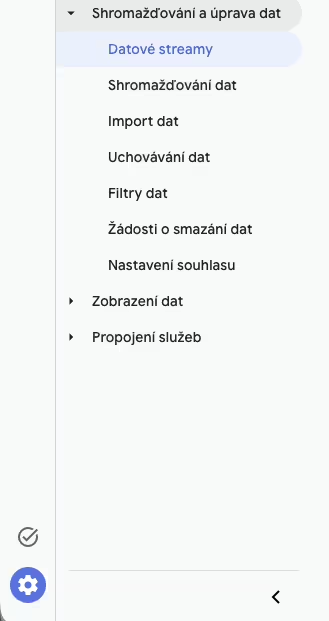
In the stream details you will find the Measurement ID – a string in the format G-XXXXXXXXXX (for example G-MHHKHGCJJ0). Copy this ID, you will need it in the last step.
Step 2: Create an API secret (Measurement Protocol)
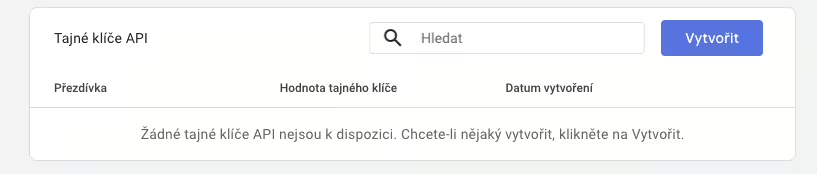
Stay in the settings of the same data stream. Scroll down to the Measurement Protocol – API secrets section and click it.

Click the Create button.
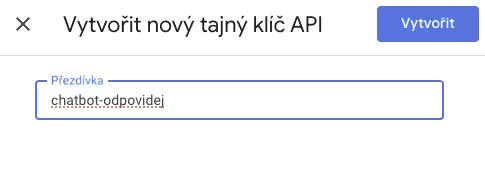
Enter any name for the key – we recommend a descriptive name such as chatbot-odpochat, so you can easily identify it later.
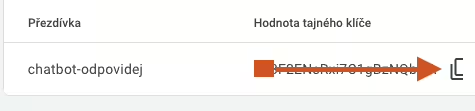
Once saved, the generated API secret will appear (it looks something like: Ps4F6ENsRxi7C1gBzNQbHB). Copy the key immediately – once you close the window, you will not be able to see it again.
Step 3: Activate the integration in Odpochat.com
Log in to your account at app.odpochat.com and go to Settings → Integrations → Analytics.
Fill in the following fields:
- GA4 ID – enter the Measurement ID from Step 1 (format
G-XXXXXXXXXX) - Secret API Measurement Protocol Key – enter the secret key from Step 2
- Check which GA4 events should be sent
- Click Save
How to verify tracking is working
After setup, test the integration by entering a test name and email in the chatbot. In Google Analytics 4, go to the Reports section – a conversion event should appear (we recommend checking the day after deployment and after sending a few test chats). All conversations you see in the Odpochat.com admin automatically tagged with the Conversion Chat label should now also be visible in Analytics. If the event does not appear, check that the Measurement ID and API key are correct.
Now you have data for better decisions
Once the integration is active, you will see in GA4 exactly how many leads each campaign brought – without distortion from cookies or blockers. You can then use this data to optimize bids in Google Ads, correctly attribute conversions in Meta, compare channel performance across platforms, or for any campaigns you run. You will stop optimizing for clicks and start optimizing for real inquiries.